 |
 |
 |
 |
|
|||||||


 Similar Threads
|
||||
| Thread | Thread Starter | Forum | Replies | Last Post |
| *imporved* ways to blend, y0 - Its teh uber 1337 tut topic, f00 | Virtual Fighter | Banners, Avatars and Images | 20 | 09-25-2004 03:59 PM |
| A website to get pictures for banners - What is it? | UrbanNinja | Links | 6 | 11-03-2002 05:36 PM |
| Whos got the phatest pictures - Show ur best pictures | picon | Members Help Center | 6 | 10-11-2002 02:30 PM |
| Banners - Will <edit> pictures | MagicX | Members Help Center | 20 | 08-09-2002 08:10 PM |
| I need Links to Pictures - pictures, pictures,pictures! | oO_HoTSauCeOo | General Comments and Strategies | 4 | 01-11-2002 05:04 PM |
 |
|
 |


 06-20-2004, 01:47 PM
|
#1 |
|
Senior Member
Senior Member
 Post Thanks / Like
Points: 0
Mentioned: 0 Post(s)
Tagged: 0 Thread(s)
Quoted: 0 Post(s)
   
|

okay, so ive been saying i would do it, later later later.
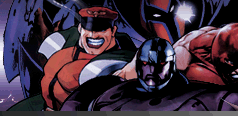
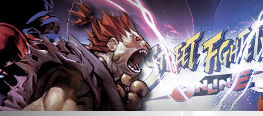
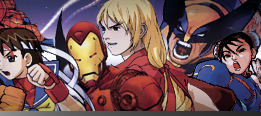
well, ive finally dont it. here i go, with the different ways to blend, and ways to master blending. 1) the first way is, set the color quardination EXACTly. for example:  you see here, i got one of my pre made BGs, and put a chunli pic on it. i changed her color, to blend in with the backgroundby first desaturating her, (ctrl + shift + u) then, with the eyedrop tool (it should look like this:  , select that and click on of of the most common colors in the background. i click on the uper top part, since the whole background pretty much looks like that. ehh, its complicated but heres an image that might help you: , select that and click on of of the most common colors in the background. i click on the uper top part, since the whole background pretty much looks like that. ehh, its complicated but heres an image that might help you: the area in red is the part i clicked on with the eyedrop tool. now, that it has the color selected, i pressed ctrl + u, to colorize my pic of chunli. Once the window pops up, i clicked on colorize, and chunli should look kinda like the same color as the banner. i changed the saturation to make it a bit more saturated, and presto. an easy-peezy-japanesey blending job. (i know, its not the greatest method, but its better then alot of you can do) 2) okay, this method is another basic blending techinque. it has to do with the opacity. first, do everything form the last technique. once that is done, do to the layer pallet, and click on the chunli layer, to make sure its selected. now, go to where it says opacity, and lower it down to 75%. and there you have it, it looks semi blended.  (i know, its not great eigther but ohwell) 3) okay, this is the most popular methos, and one of the easiest. koay, do the steps from the first technique. once that is done, select the chunli layer. on the top of the layer pallet, there should a thing that says "Normal" click on it, and it should bring down a whole mess of things. expirement with them, click on lighten, or darken, or hard light, pinlight, try them all out. the chun li should be getting blended almost. My favorite is lighten, it should look something like this:  4) okay, this method is hard. its probably the hardest, because it requires some thought. first, make a ####G, and make it grey. then, past a charector image on it. DONT CHANGE THE CHARECTOR COLOR. instead, change the greay background color, so it is the same color as the charector. such as, if you are doing chunli, the most obviouse is blue. if you are doing ryu, a tan color. if you are doing wolverien, a sort of yellow will do, or possibly blue (but i dont recommend blue) if the charector has two colors, like hulk (green and purple) then dont mix both purple and blue in the BG. now, once the background is the color of the charector, we will blend him in by setting the blending mode to lighten. set the charector in, and there you have it. here are some examples:    okay, now that you are a super pimp at basic blending, lets get on to the harder stuff, shall we? BLENDINNG TEXT, AND CHRACTOR SELECTION okay, first we'll work on blendind text. we'll use the sp
__________________
[img:sig_uid]http://upl.silentwhisper.net/uplfolders/upload5/uyuyuyu.jpg[/img:sig_uid] [b:sig_uid]Nothing Nice to Say - The World's FIRST Online Punk Comic[/b:sig_uid] |

|

|
«
Previous Thread
|
Next Thread
»


 Threaded Mode
|
|
